Position mismatch between scanning software and exocad is usually caused by different coordinate systems. During the design process, EXOCAD may redefine the model’s position internally. If the restoration is exported using this new coordinate system, it will not align correctly when re-imported into the scanning software.
To ensure proper alignment, the design should be exported using the original scan coordinate system, so both the scan data and restoration share the same spatial reference.
In digital dentistry, it is quite common to see a situation like this:
- The scan data looks correct in the scanning software
- The design looks correct in exocad
- But after exporting the design and importing it back into the scanning software, the position has shifted
This often causes confusion for dental labs and clinics. Many users assume it is a software error, but in most cases, the real reason is much simpler.
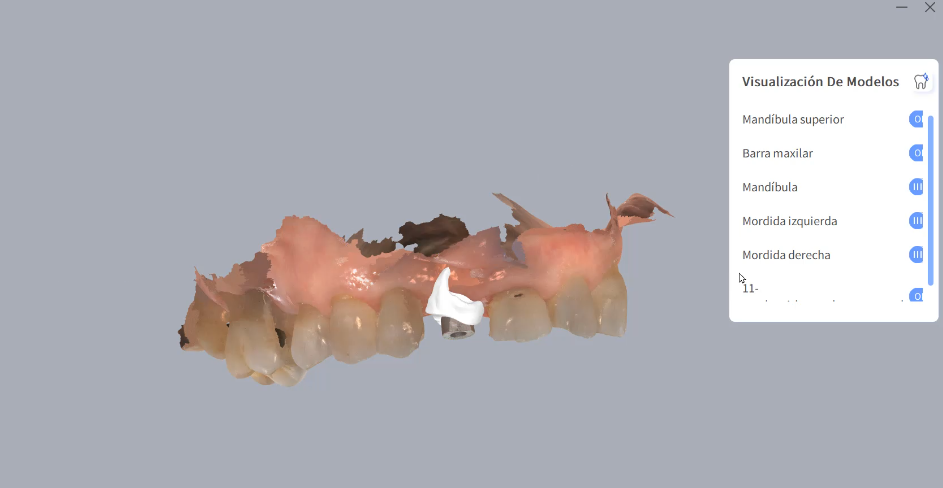
👉 It is caused by different coordinate systems.
1. Where Does the Problem Come From?
To understand this issue, we need to look at the full workflow:
Scan → Design → Export → Re-import
The position shift usually happens at the last step. The key reason is:
The scanning software and EXOCAD do not use the same coordinate system.
2. What Is a Coordinate System in Dental STL Data?
An STL file is not just a 3D shape. It also contains:
- X, Y, Z axes
- A defined origin (0,0,0)
- The spatial position of the model
This is called the coordinate system.
👉 Every software uses this system to decide where the model is placed in space.
3. What Happens in Scanning Software?
When a model is created in a scanning system (intraoral or lab scanner):
- A native coordinate system is generated
- The model position is fixed relative to this system
This coordinate system becomes:
✅ The reference for all future alignment
4. What Happens After Importing into EXOCAD?
When the scan data is imported into exocad, several internal adjustments may occur:
- The model may be automatically centered
- The insertion direction is redefined
- The Z-axis is adjusted based on occlusion or design logic
- A new internal coordinate system is created
👉 Important point:
The model looks the same visually, but its coordinates may have changed.
5. Why Does the Position Shift After Export?
After designing the restoration (crown, bridge, etc.), if you export the STL directly:
- The exported file uses EXOCAD’s coordinate system
However, when importing back into the scanning software:
- The scanner still uses the original scan coordinate system
👉 Result:
- The model and restoration no longer align
- You see shifting, rotation, or height mismatch
6. The Correct Solution: Use the Original Scan Coordinate System
Through testing and real production cases, a reliable solution has been identified:
✅ Export the design using the original scan coordinate system
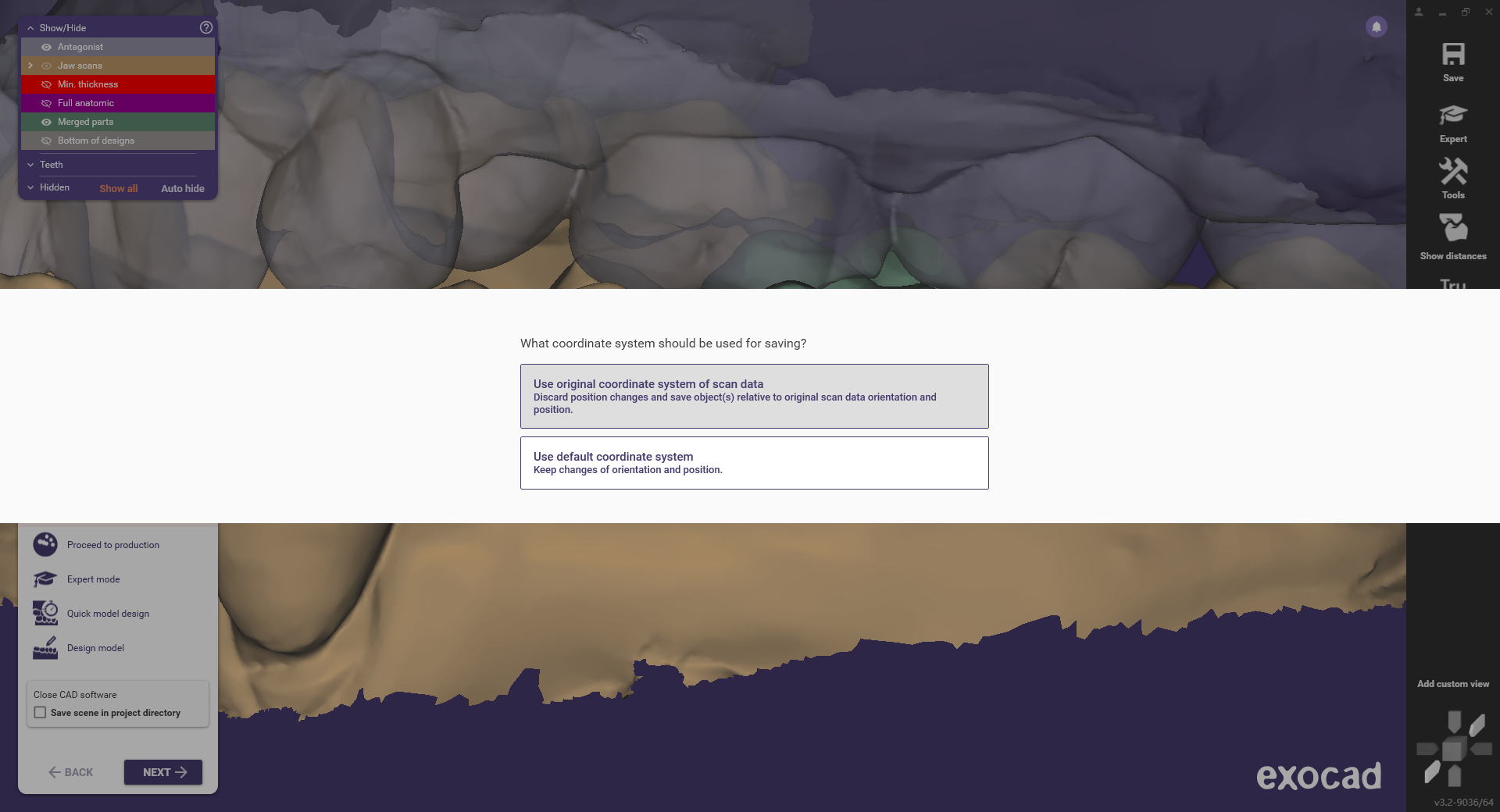
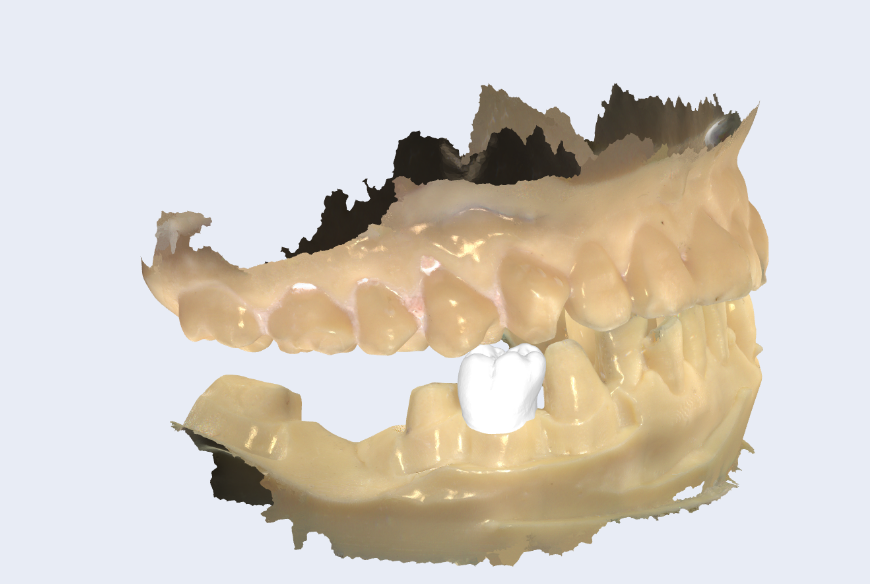
When this is done:
- The restoration is mapped back to the original scan space
- Both files share the same reference
- The alignment is correct
7. Why Does This Method Work?
Because exocad stores more than just geometry in its project files:
- Original scan data
- Transformation matrix (coordinate changes)
- Relationship between scan and design
This allows EXOCAD to:
- Display scan and restoration together
- Recalculate positioning when needed
👉 When you choose the original coordinate system during export, EXOCAD applies the correct transformation back.
8. Common Misunderstandings
Misunderstanding 1: STL files always align automatically
❌ Not true
Different software uses different coordinate systems
Misunderstanding 2: This is a software bug
❌ In most cases, it is not
It is a data alignment issue
Misunderstanding 3: The model itself is incorrect
❌ The geometry is usually fine
The issue is the position in space
9. Practical Advice for Dental Labs and Clinics
To avoid this issue in daily work:
✔ Keep coordinate consistency
- Avoid unnecessary STL editing between steps
- Do not re-center or re-orient files randomly
✔ Use original scan coordinates when exporting
- Especially when data needs to return to scanning software
✔ Standardize your workflow
- Scan → Design → CAM should follow a fixed data logic
✔ Communicate with your lab or milling center
- Make sure both sides understand coordinate handling
10. Final Thoughts
Position mismatch between scan software and CAD systems is not unusual in digital dentistry.
It is not about the model itself, but about how different systems define space.
Once the coordinate system is unified, the problem disappears.
